MY HOME PAGE
ABOUT
CONTACT
PRICES
 Here's
the image I added. You'll notice I have the text flowing
down the side of the image. It's a very handy feature
when you're trying for a newsletter look or just want
your text next to your image. It's simple to do, and you
might have figured it out already. When you add your
image, in the image dialog, click on the Appearance tab
and choose left from the Alignment drop down list. (See below).
Here's
the image I added. You'll notice I have the text flowing
down the side of the image. It's a very handy feature
when you're trying for a newsletter look or just want
your text next to your image. It's simple to do, and you
might have figured it out already. When you add your
image, in the image dialog, click on the Appearance tab
and choose left from the Alignment drop down list. (See below).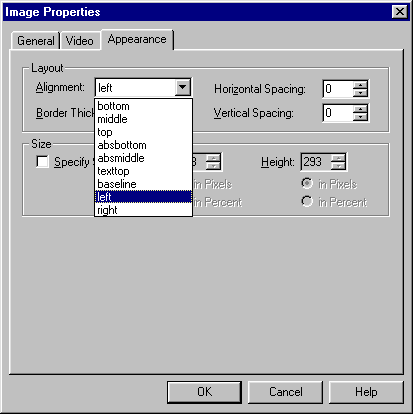
A couple of other properties are available on that dialog as you can see. Horizontal Spacing, controls how much space to the left and right of the image you have. Vertical Spacing controls above and below. You can also change the border around the image. That's how you get rid of the border on images you use as a link to another page or URL. Changing the size of the image can be done here, or you can just click on the image and drag the size up or down. FPX will remember that and write in the proper height and width to your HTML.